
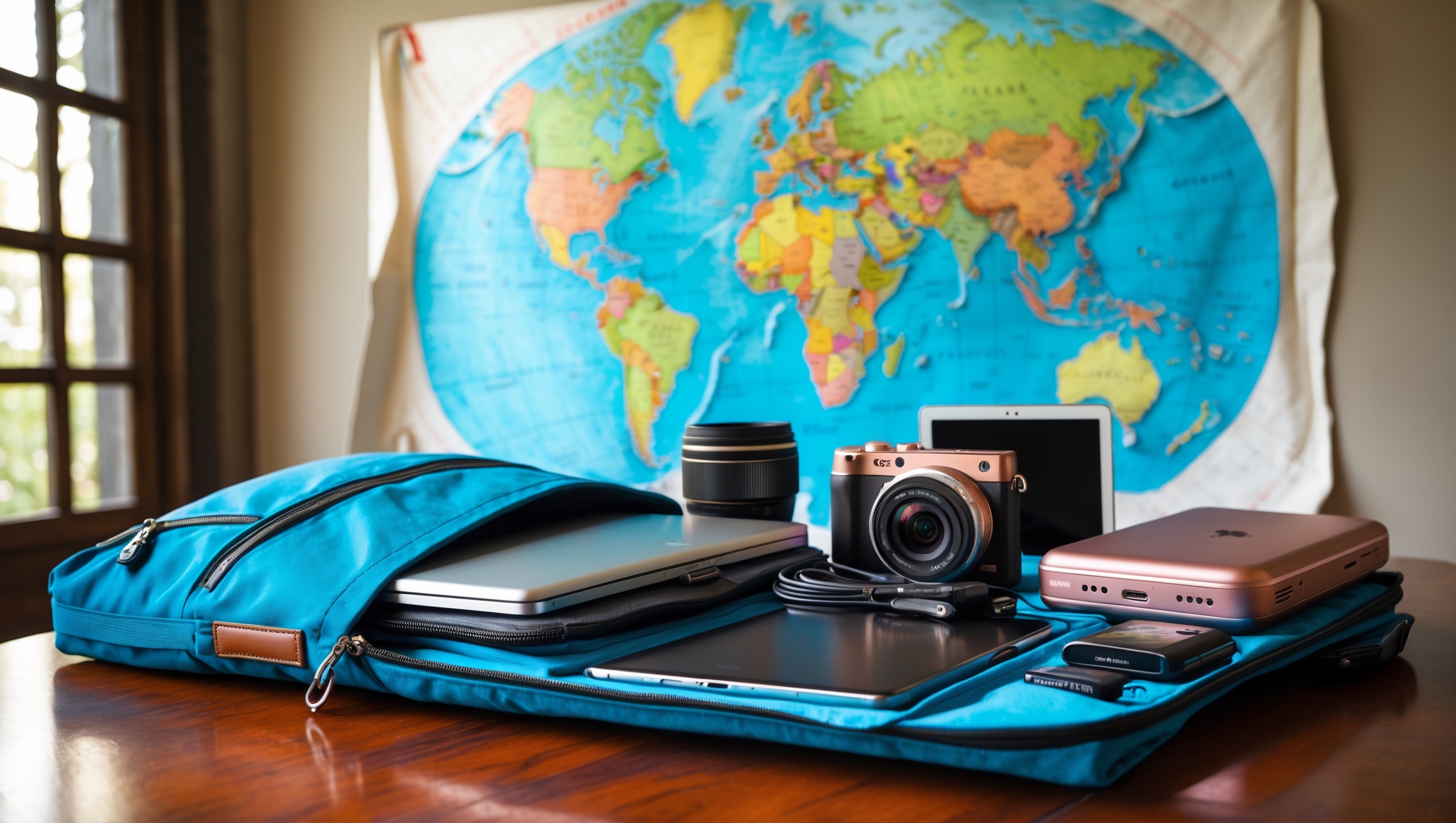
Introduction: Why Tech Maintenance Matters for Travelers
In today’s hyper-connected world, our gadgets are essential travel companions. Laptops, smartphones, cameras, e-readers, and portable chargers keep us productive, entertained, and in touch. But traveling exposes these devices to new risks—drops, spills, power surges, climate extremes, and theft can quickly turn a dream trip into a tech nightmare. Whether you’re a digital nomad, frequent flyer, or adventure seeker, keeping your tech functional and secure on the road is as important as safeguarding your passport. This comprehensive guide dives into best practices for maintaining and protecting your gadgets before, during, and after travel. From pre-trip checklists to in-transit care, troubleshooting, and long-term storage, you’ll find actionable tips to maximize device longevity and minimize disruptions to your digital life. Let’s ensure your tech works for you, not against you, wherever your travels take you.
Pre-Trip Preparation: Setting Your Gadgets Up for Success
1. Update Software and Back Up Data
Before you depart, update your devices’ operating systems, apps, and firmware. Software updates often contain security patches and performance improvements crucial for use on unfamiliar networks. Equally important is backing up your data—use both cloud services and physical backups (like an encrypted external drive). This protects your work, photos, and contacts in case a device is lost or damaged.
2. Clean and Inspect Hardware
Wipe down screens, keyboards, and ports with microfiber cloths and safe cleaning solutions. Inspect for cracked screens, frayed cables, or loose ports. Addressing minor issues at home is easier and avoids sudden failures on the road. Replace worn-out accessories, especially charging cords and adapters, which are notoriously fragile.
3. Organize Cables and Accessories
Tangled cables not only waste time but can also cause wire breakage. Invest in a cable organizer or use simple zip bags to separate chargers, adapters, and USB cables. Label each item, especially if you carry multiple similar-looking cords.
4. Choose the Right Cases and Screen Protectors
Protective gear is your first line of defense. Use shock-proof, water-resistant cases and tempered glass screen protectors on all gadgets. For cameras and sensitive electronics, consider padded bags with customizable inserts for snug fits.
5. Pack Smart
- Carry gadgets in your hand luggage, not checked bags, to avoid rough handling and theft.
- Distribute tech items among your bags to minimize loss if one is stolen.
- Use anti-theft backpacks with lockable zippers and RFID protection.
Power Management: Ensuring Your Devices Stay Charged
1. Universal Adapters and Voltage Converters
Research the plug types and voltages at your destination. Carry a quality universal adapter and, if necessary, a voltage converter. Some devices (like hairdryers) are not dual voltage—check your gadget labels before plugging them in abroad.
2. Portable Power Banks
Choose power banks with enough capacity (measured in mAh) to charge your devices at least once. Look for fast-charging capabilities and multiple USB ports. Remember to charge your power bank fully before departure and pack it in your carry-on, as many airlines restrict lithium batteries in checked luggage.
3. Efficient Charging Habits
- Unplug devices once fully charged to avoid overheating.
- Avoid charging gadgets overnight in unfamiliar places.
- Carry spare charging cables and a compact power strip to maximize limited outlets.
Protection from Physical Damage
1. Weatherproofing Your Tech
Weather can be unpredictable. Use waterproof pouches for phones and tablets. Store electronics in dry bags when traveling in humid or wet environments. For cameras and drones, consider silica gel packs to absorb moisture inside carrying cases.
2. Preventing Drops and Shocks
Always secure your devices when not in use. Use wrist straps on cameras and handheld devices. When working on the go, set gadgets on stable, flat surfaces away from edges. Avoid using laptops or tablets while walking or in crowded areas.
3. Safe Storage in Transit
- Use padded compartments in your backpack or suitcase for laptops and tablets.
- Never leave gadgets visible in parked vehicles.
- If staying in a hostel or shared accommodation, lock devices in a secure locker or use a portable travel safe.
Digital Security: Safeguarding Your Data and Privacy
1. Strong Passwords and Two-Factor Authentication
Enable strong, unique passwords for each device and account. Use a reputable password manager and activate two-factor authentication (2FA) whenever possible. This adds an extra layer of security if your device is compromised.
2. Secure Connections on Public Wi-Fi
Public Wi-Fi networks are convenient but risky. Always use a virtual private network (VPN) to encrypt your internet traffic. Avoid accessing sensitive information (like online banking) on unsecured networks. Forget Wi-Fi networks when you leave a location to prevent automatic reconnections.
3. Encrypt Sensitive Data
Enable full-disk encryption on laptops and smartphones. This ensures that if your device is lost or stolen, your data remains inaccessible without your password. Store sensitive files in encrypted folders or secure cloud services with strong encryption protocols.
Routine Cleaning and Maintenance On the Road
1. Dust and Debris Removal
Travel exposes gadgets to dust, sand, and grime. Regularly clean screens and ports with a soft brush or compressed air. Use lens cleaning kits for cameras and keep lens caps on when not shooting.
2. Battery Health Best Practices
- Avoid exposing devices to high temperatures, which can degrade batteries.
- Let devices cool down after heavy use before charging.
- Try to keep batteries between 20% and 80% charge instead of letting them fully drain or constantly charging to 100%.
3. Software Housekeeping
Delete unused apps, clear caches, and regularly check for software updates while traveling. This keeps your devices running smoothly and reduces the risk of malware attacks.
Emergency Preparedness: What to Do If Things Go Wrong
1. Theft and Loss
- Enable device tracking features like Find My Device (Apple/Google/Samsung).
- Note down device serial numbers and keep a digital copy of purchase receipts in cloud storage for insurance claims.
- Report loss or theft immediately to local authorities and your consulate if necessary.
2. Water Damage
If a device gets wet, turn it off immediately and remove any batteries or SIM cards if possible. Dry external surfaces with a lint-free cloth. Place the device in a bag of silica gel (avoid rice, which can introduce dust) and leave it for at least 48 hours. Seek professional repair if the device doesn’t power on.
3. Power Surges and Faulty Outlets
Always use surge-protected travel adapters. Never force plugs into sockets. If you notice sparks or burning smells, unplug devices immediately and seek another outlet.
Long-Term Travel and Storage Tips
1. Rotating and Powering Up Devices
If you travel for months at a time, rotate the use of your gadgets. Power up devices in storage every few weeks to keep batteries healthy. For items not needed on your trip, store them in a cool, dry place at about 50% battery charge.
2. Cloud Storage and Remote Access
Leverage cloud services for automatic photo backups and important documents. Set up remote access tools (like Google’s Find My Device or Apple’s Find My) for troubleshooting or data wiping in emergencies.
3. Insurance and Replacement Plans
Consider specialized travel insurance that covers electronics, including accidental damage and theft. Keep digital copies of policy documents accessible. Some credit cards also offer purchase protection for gadgets bought with the card—know your coverage details before you leave.
Conclusion: Smart Maintenance for Worry-Free Digital Travel
Keeping your tech in top condition while traveling isn’t just about convenience—it’s about protecting your productivity, memories, and peace of mind. By adopting a maintenance-first mindset, you can prevent many common mishaps that plague travelers, from shattered screens to data loss. Remember, preparation is the best defense: inspect and update your devices, pack them thoughtfully, and use protective gear. On the road, stay vigilant about physical and digital security, clean your gadgets regularly, and adopt smart charging habits to prolong battery life. In emergencies, act quickly using device tracking, cloud backups, and local resources to recover or replace your equipment. Long-term travelers should also think about rotating devices, remote data access, and adequate insurance. Ultimately, the goal is to let technology enhance your journey—not hold you back with preventable problems. Follow these best practices, and your gadgets will be reliable companions wherever in the world you choose to roam.
You talked about inspecting gadgets for issues like frayed cables and loose ports before leaving. If I find a minor problem right before a business trip, like a slightly cracked phone screen, is it better to repair it immediately or is it safe to wait until I return?
If you notice a minor issue like a slightly cracked phone screen before your trip, it’s wise to consider the risks. Traveling can make small cracks worse due to bumps or pressure, and a damaged screen could make your phone less reliable in an emergency. If possible, repair it before you go, but if time is tight, use a sturdy case and screen protector, and handle your phone carefully until you can fix it.
I noticed you talked about inspecting hardware and replacing worn-out cables before traveling. For a small business on a tight budget, are there particular brands or types of charging cords and adapters that are both affordable and durable enough for frequent travel?
For small businesses looking to balance cost and durability, brands like Anker, Aukey, and UGREEN are generally reliable and reasonably priced. Look for cables that are nylon-braided, as they tend to withstand frequent bending and packing better than basic plastic ones. Multi-port adapters from these brands also offer versatility and value for frequent travelers without breaking the budget.
You mentioned inspecting cables for wear before traveling—are there any budget-friendly charging cords or adapters you trust not to fray quickly? I feel like mine always stop working mid-trip, and I’d love some affordable recommendations.
You’re right—finding durable, budget-friendly cables can be tough! Look for charging cords with braided nylon exteriors, as they’re less likely to fray than standard plastic ones. Brands like Anker and AmazonBasics often offer reliable options at reasonable prices. For adapters, choose ones with sturdy, reinforced joints. It’s smart to pack a spare just in case, since they’re lightweight and affordable.
When you recommend backing up data before a trip, do you think it’s safer to rely mostly on cloud storage or physical backups like encrypted drives, especially when traveling to countries with spotty internet connections?
If you’re traveling to places with unreliable internet, it’s a good idea to use both cloud storage and a physical backup like an encrypted drive. Cloud storage offers convenience and remote access, but a physical backup ensures you have your data even without internet. Just make sure your encrypted drive is secure and stored safely while you travel.
When you mention backing up data before a trip, do you recommend any specific cloud services or encrypted external drives that are both secure and easy to use while traveling internationally? I want to be sure my photos and work files stay protected, even if my laptop goes missing.
For travelers, cloud services like Google Drive, Dropbox, and Microsoft OneDrive are popular for their security, international accessibility, and ease of use. If you need extra privacy, consider services with end-to-end encryption like Sync.com. For encrypted external drives, options like Samsung T7 Touch and SanDisk Extreme Portable SSD offer hardware encryption and portability. Make sure to set strong passwords and enable two-factor authentication on all services to keep your files safe throughout your trip.
For someone traveling to multiple countries with different climates, do you have any tips on how to keep devices safe from humidity and temperature changes? Are there specific products or methods you’d recommend to protect gear from moisture or overheating?
To protect your devices from humidity, consider using silica gel packs or other moisture-absorbing packets inside your bags or cases. For temperature extremes, keep devices out of direct sunlight, avoid leaving them in hot cars, and use padded, insulated cases where possible. Waterproof pouches or dry bags are helpful in very humid or wet environments. Let devices adjust to room temperature before turning them on if they’ve been exposed to drastic temperature changes.
You mention backing up data to both cloud services and encrypted external drives before traveling. Do you have any tips for choosing a reliable and easy-to-carry physical backup device that won’t take up too much space in a carry-on?
When picking a backup device for travel, look for a portable SSD or a compact encrypted USB flash drive. SSDs are faster and more durable than traditional hard drives, and there are models that fit in your palm. Choose one with built-in hardware encryption for extra security. Also, make sure it’s lightweight, shock-resistant, and has a sturdy case to handle travel bumps. Check that the storage capacity fits your needs, but even 256GB is often enough for essential backups.
When you suggest backing up data before a trip, do you recommend prioritizing cloud backups, physical backups, or using both equally? If someone is traveling somewhere with very limited internet access, what’s the most reliable backup strategy to ensure their data remains safe?
If you’re heading somewhere with limited internet, it’s wise to prioritize physical backups like an external hard drive or USB stick. Cloud backups are useful if you’ll have internet access, but for remote areas, physical copies are more reliable. For the best protection, create both a cloud and a physical backup before you leave so your data is safe no matter what happens during your trip.
Regarding cleaning and inspecting hardware before travel, do you have advice on how to deal with persistent dust or debris in ports that doesn’t come out with a microfiber cloth? Is it safe to use compressed air or are there better alternatives to avoid damaging sensitive components?
If dust or debris is stuck in ports and a microfiber cloth isn’t enough, using compressed air in short bursts is generally safe—just hold the can upright and don’t shake it to avoid moisture. For stubborn particles, a soft-bristled brush or a wooden toothpick can help gently dislodge debris. Avoid inserting anything metal or using liquids, as these can damage sensitive components.
The article mentions updating operating systems and apps before traveling, but sometimes these updates start right before a trip and take a long time. Is it risky to skip updates if I’m short on time, or should I always prioritize them even if it delays my departure?
If you’re short on time, it’s understandable to be concerned about updates delaying your trip. While it’s ideal to update your devices before traveling for better security and performance, skipping an update occasionally isn’t disastrous. However, try to install at least critical security updates. If you absolutely must delay, set aside time to update as soon as you reach a stable internet connection at your destination.
I run a small business and often let employees take company laptops on trips. The article mentions backing up data to cloud services and external drives before travel. Do you have any tips for setting up these backups efficiently for multiple devices, or recommendations for business-friendly backup tools?
For multiple devices in a business setting, using a centralized cloud backup solution like Microsoft OneDrive for Business or Google Workspace can help automate backups and manage user access. These services let you enforce backup policies and monitor compliance. For external drives, consider encrypted drives and create a clear backup checklist for employees to follow before travel. Automating scheduled backups on each device can save time and reduce errors.
The article talks about checking for frayed cables and replacing worn-out adapters before traveling. Are there certain brands or features you suggest looking for in replacement charging cords and adapters to ensure they stand up to frequent use and different power outlets abroad?
When choosing replacement charging cords and adapters, look for reputable brands known for quality, like Anker, Belkin, or Aukey. Features to consider include reinforced connectors, braided cables for durability, and universal voltage (100–240V) adapters for compatibility with international outlets. Safety certifications like CE, UL, or FCC are important to ensure reliability and prevent overheating or short circuits during your travels.
I run a small design business and often travel with my laptop and external drives full of client data. The article mentions both cloud and physical backups—do you have recommendations on the most secure way to handle sensitive files when I might not have reliable internet access overseas?
For sensitive client files, consider using encrypted external drives or USB sticks for physical backups. Tools like VeraCrypt allow you to create secure, password-protected containers. Before traveling, back up your data to both the encrypted drive and a reputable cloud service with strong authentication. When internet is unreliable, rely on the encrypted physical backup, and upload to the cloud when you have a secure connection. Always keep your drives with you and avoid leaving them unattended.
Could you recommend specific types of cable organizers that are particularly durable for frequent travelers? I’m trying to avoid options that might break easily or don’t actually keep cables untangled during transit.
For frequent travelers, I recommend looking for cable organizers made from high-quality silicone or durable ballistic nylon. Zippered pouches with elastic loops or roll-up cable wraps often hold up well and keep cables secure and untangled. Brands that are repeatedly mentioned for their durability include BAGSMART and Cocoon’s GRID-IT. Avoid thin plastic cases or organizers with weak snaps, as these are more likely to break with heavy use.
I noticed you mentioned backing up data to both cloud and physical drives before a trip. For someone on a tighter budget, do you have recommendations for affordable yet reliable backup solutions, or is one method generally safer than the other while traveling?
If you’re on a budget, free or low-cost cloud services like Google Drive or Dropbox can provide enough space for essential documents and photos. For physical backups, consider budget-friendly USB flash drives or portable hard drives from reputable brands. Neither method is foolproof—cloud backups protect against loss or damage of physical drives, while physical backups work without internet. Using both is safest, but if you must choose one, cloud options are generally more secure while traveling.
Do you have any suggestions for keeping devices safe from power surges while traveling abroad, especially in places where the voltage and power quality might be different from the US? Are there specific types of adapters or surge protectors you recommend for international trips?
To keep your devices safe from power surges abroad, use a travel surge protector specifically designed for international voltage (typically 100–240V). Look for models with built-in surge protection and multiple plug adapters for the countries you’ll visit. Avoid cheap, basic adapters that lack surge protection, as they won’t safeguard your devices. Also, always check that your devices support the local voltage, or use a voltage converter if necessary.
I noticed you suggested checking for frayed charging cables and replacing them before leaving. Are there any specific brands or cable types you’ve found that hold up better during frequent travel, especially on a budget?
In my experience, braided nylon charging cables tend to be more durable than standard plastic ones, especially for frequent travel. Brands like Anker and Aukey offer budget-friendly options that are well-reviewed for reliability. Look for cables with reinforced ends, as they’re less likely to fray after repeated packing and use. Just double-check compatibility with your devices before purchasing.
You mention wiping down screens and inspecting for issues before traveling. Are there specific cleaning solutions you recommend that are safe for sensitive screens? Also, how often should I repeat these checks during a trip?
For cleaning sensitive screens, use a microfiber cloth slightly dampened with water or a cleaning solution specifically labeled as safe for electronics—avoid household cleaners with alcohol or ammonia, as they can damage screens. During your trip, inspect and clean your devices every few days, especially if you’re in dusty or humid environments. This routine helps prevent buildup and lets you catch any potential issues early.
Do you have any tips for travelers who need to update device software but may have limited internet access before or during a trip? Are there ways to securely download updates in advance or tools to help manage this process offline?
Absolutely, preparing your devices ahead of time is key. Before your trip, connect to a secure and reliable Wi-Fi network and check for available software updates on all your gadgets—download and install them fully. You can also download offline update packages from official manufacturer websites when possible. Consider storing these files on a USB drive or external storage, so you’re ready for manual updates if needed. Always back up your data first just in case anything goes wrong during the update process.
The article talks about inspecting hardware and replacing worn-out charging cords and adapters. How can I tell if a charging cable is really about to fail, and are there any quick DIY fixes for frayed cables if I notice issues while traveling?
You can spot a failing charging cable by looking for visible wear like fraying, exposed wires, or bent connectors, as well as by checking if charging becomes intermittent or slow. If you notice fraying while traveling, you can use electrical tape to wrap and reinforce the damaged spot as a temporary fix. Just make sure the wires aren’t exposed, and replace the cable as soon as you can for safety.
When inspecting hardware before a trip, are there any specific signs of damage that could seem minor at first but might lead to bigger problems later? I want to avoid my laptop or phone failing unexpectedly while I’m traveling.
Absolutely, small issues can turn into big problems while traveling. Look for things like hairline cracks near ports or screens, loose or wobbly charging connectors, swelling in your device’s battery (like bulges on the back), and sticky or unresponsive buttons. Also, check for unusual screen flickering or unexplained heat. Address these early—fixing or replacing affected parts before your trip can prevent sudden failures on the road.
The article mentions updating operating systems and backing up data before traveling, but what if you don’t have reliable internet access at your destination? Are there specific backup methods or tools you’d recommend that work well offline?
If you won’t have reliable internet access, you can use physical backups like external hard drives or USB flash drives to store copies of important files before you travel. Many backup software options let you create complete system images or regular backups offline. Just be sure to encrypt sensitive data on portable drives for added security while on the road.
When checking cables and charging adapters before a trip, how can you tell if a cable is too worn out or unsafe to use? Are there signs other than visible fraying that I should look for to avoid any issues while on the road?
Besides visible fraying, check for any kinks, stiff spots, or bent connectors, which can indicate internal wire damage. Also, if you notice the cable gets unusually hot during use or if connections are loose or intermittent, these are warning signs. If the insulation feels sticky or cracked, it’s best to replace the cable to avoid any charging issues or safety risks while traveling.
When inspecting hardware for minor issues before a trip, how do you distinguish between cosmetic wear and something that could actually lead to device failure while traveling? Are there warning signs that suggest a charging cable or port needs immediate replacement?
Cosmetic wear like light scratches or scuffs usually won’t impact device function. Signs of trouble include frayed or exposed wires, loose or bent connectors on cables, and charging ports that feel loose, have debris inside, or only work intermittently. If you notice any of these, it’s best to replace or repair the part before you travel to avoid unexpected failures.
For the pre-trip hardware check, is there a quick way to test if charging cables and adapters are still reliable before packing them, or should I just replace them with new ones for peace of mind if they look a little worn?
You don’t always need to replace slightly worn charging cables or adapters. Before your trip, plug each cable and adapter into your devices to confirm they charge properly and maintain a steady connection. Gently wiggle connectors to check for any looseness or interruptions. If you notice fraying, exposed wires, or inconsistent charging, it’s safer to replace those items before you travel.
When it comes to cleaning and inspecting devices before a trip, how detailed should this inspection be? For example, if I find a small crack on my laptop screen, is it worth fixing immediately or is it generally safe to travel with minor cosmetic issues until I get back?
Before your trip, a thorough inspection is important. Check for any physical damage, loose parts, or debris in ports and keyboards. If you find a small crack on your laptop screen, it might still function, but travel can make it worse. If the crack affects visibility or seems likely to spread, it’s best to fix it before you go. Otherwise, minor cosmetic issues are usually safe to monitor and address after your trip if they don’t affect device performance.
You mention using both cloud services and physical backups, like encrypted external drives, for protecting data before a trip. Is one method generally more reliable than the other if I have to recover files while traveling abroad, especially in places with spotty internet?
If you’ll be in areas with unreliable internet, having a physical backup like an encrypted external drive is usually more dependable for recovering files quickly. Cloud services are great for off-site protection, but accessing large files can be challenging without good connectivity. Ideally, bring an external drive for instant access and use cloud backups for added security if your device is lost or stolen.
When you mention using both cloud services and encrypted external drives for backups before travel, do you have recommendations for budget-friendly external drives that are reliable for frequent flyers? Also, any tips on how to securely travel with physical backups?
For budget-friendly and reliable external drives, brands like WD (Western Digital) and Seagate offer compact portable drives that are good for frequent travelers. Look for models with built-in hardware encryption, such as WD My Passport or Seagate One Touch. When traveling, always keep your drive in your carry-on, use a protective case to guard against bumps, and avoid plugging it into unfamiliar or public computers to reduce risks of malware.
If I’m using public Wi-Fi during my business trips, are software updates before I leave enough to keep my devices safe? Or should I be doing anything extra to protect sensitive work data while on the road?
Updating your software before you travel is a great start, but it’s not quite enough for full protection on public Wi-Fi. You should also use a trusted VPN when connecting to public networks, enable two-factor authentication on important accounts, and avoid accessing sensitive data unless absolutely necessary. Turning off file sharing and Bluetooth when not in use can add an extra layer of security.
The article mentions using both cloud services and physical backups like encrypted external drives before traveling. Do you have any recommendations for affordable and reliable encrypted drives suitable for students, or tips for choosing one that works well internationally?
For students, brands like Kingston, SanDisk, and WD offer affordable encrypted external drives—look for models with hardware encryption such as the Kingston DataTraveler Locker+ G3 or WD My Passport with password protection. When choosing one for international use, make sure it’s USB-powered (not region-specific), uses AES 256-bit encryption, and is compatible with your laptop’s operating system. It’s also wise to pick a drive with a durable, shock-resistant build for travel.
You mention updating operating systems and apps before traveling for security reasons—are there any specific precautions I should take if I’m heading to a country with stricter internet controls or potential cyber risks?
If you’re traveling to a country with stricter internet controls or higher cyber risks, consider using a reliable VPN to secure your connection and access important sites. Disable automatic device connections to public Wi-Fi, turn off Bluetooth when not needed, and avoid using unfamiliar USB charging stations. Also, back up your data before traveling and enable strong passcodes or biometric locks on your devices.
After reading the section about cleaning and inspecting devices pre-trip, I started wondering—if I notice a small crack on my laptop screen before traveling, is it okay to just reinforce it with a screen protector, or should I really get it repaired before leaving?
If you spot a small crack on your laptop screen before your trip, it’s best to get it repaired before you leave. While a screen protector might help prevent the crack from spreading further, travel can put extra stress on electronics, potentially making the damage worse. Repairing it now can save you from bigger problems or unexpected device failures while you’re away.
I’m curious about how to check for power surge risks in hotels or hostels abroad. Are there any quick ways to determine if I need extra protection for my devices, or is using a surge protector always recommended?
It’s often hard to know the quality of electrical wiring in hotels or hostels abroad just by looking. If you notice damaged outlets, flickering lights, or exposed wires, those are red flags for possible surges. Power fluctuations are more common in some countries, so when in doubt, using a travel surge protector is a safe bet. It’s a simple precaution that can save your devices from unexpected damage.
You mentioned cleaning devices before traveling, but are there any specific cleaning solutions or products that are safe for both screens and keyboards? I want to avoid damaging my gadgets’ coatings by using something too harsh.
For cleaning both screens and keyboards safely, look for alcohol-free, ammonia-free cleaning sprays specifically designed for electronics. Microfiber cloths are ideal for wiping without scratching. Avoid using window cleaners or household disinfectants, as they can damage coatings. Pre-moistened electronic-safe wipes are also a convenient option. If you’re unsure, distilled water lightly dampened on a microfiber cloth is a gentle, safe choice for most devices.
When inspecting gadgets for issues before travel as suggested, what’s the best way to check for less obvious problems like battery health or hidden software glitches that might not be visible during a quick physical check?
To check battery health, many devices have a built-in tool—on iPhones, it’s in Settings under Battery, while Android phones often have a similar option in Settings or via a dial code. For laptops, diagnostic tools are available in system settings. To spot hidden software glitches, restart your device and run its diagnostic or troubleshooting tool, then ensure all apps and the operating system are updated. Running a quick scan with antivirus software can also help identify potential issues.
You mention updating software and apps before a trip for security reasons. If I’m going to a country with limited internet access, are there ways to make sure all my devices stay secure even if I can’t update them frequently while traveling?
Absolutely, there are ways to keep your devices secure even with limited internet access. Before you travel, make sure all software, apps, and security patches are fully updated. Enable device encryption and set strong passwords or PINs. Disable automatic connections to public Wi-Fi, and turn off features like Bluetooth when not in use. Download any necessary offline security tools or apps ahead of time. This proactive approach will help protect your devices until you have reliable internet access again.
I noticed the article emphasizes backing up data using both cloud services and encrypted external drives. Is one method generally safer than the other when traveling abroad, especially in areas with unreliable internet? How do you decide which backup solution to prioritize?
When traveling in areas with unreliable internet, encrypted external drives offer a safer and more dependable backup compared to cloud services since you won’t be dependent on connectivity. However, cloud backups protect your data if physical devices are lost or stolen. Many travelers prioritize the external drive for daily backups, then use the cloud whenever they have secure internet access for a second layer of safety.
I noticed you recommend doing both cloud and physical backups before traveling. For someone who travels frequently, is it better to rely on one method over the other in terms of speed and security, or should we always use both every time?
Using both cloud and physical backups is ideal, especially for frequent travelers. Cloud backups give you access to your data anywhere and protect against physical loss, while physical backups (like an external drive) offer quick recovery without relying on internet access. Neither method alone covers all risks, so combining them ensures your data stays secure and accessible in almost any situation.
You mention using both cloud services and an encrypted external drive for backing up data before traveling. For someone who will be in areas with limited or unreliable internet, do you have recommendations on the most practical and secure ways to perform regular backups during the trip?
If you’re traveling in places with unreliable internet, bringing an encrypted external drive is your best bet for regular backups. Make it a habit to back up your data daily or after important work. Use reputable backup software to automate the process when possible, set strong passwords, and keep the drive stored separately from your laptop to reduce risk if one is lost or stolen.
Is there a specific type of external drive you recommend for backing up photos and documents before a big trip? I’m worried about losing everything if my laptop gets damaged while traveling, but I’m also not sure if SSDs or HDDs are better for travel.
For travel, a portable SSD is generally a safer choice than an HDD. SSDs are more resistant to bumps and drops since they have no moving parts, making them ideal for travel. Look for a well-reviewed, rugged external SSD with at least 500GB or 1TB capacity, and consider one with water and dust resistance for extra security.
When you mentioned using both cloud services and an encrypted external drive for backups before travel, do you have any recommendations for reliable, budget-friendly external drives that are easy to use for someone not super tech-savvy?
For a reliable and user-friendly external drive, brands like Western Digital (WD) My Passport and Seagate Backup Plus are excellent choices. They are affordable, widely available, and come with simple setup guides. Both also offer built-in password protection and optional encryption, which helps keep your data secure. Choose a capacity that fits your needs—500GB or 1TB is usually plenty for travel backups.
You talk about updating operating systems and apps before leaving, but what should I do if my device starts acting up or crashing right after a big update? Is it safer to update everything right before I travel or should I do it a few days in advance in case problems come up?
It’s a good idea to update your devices a few days before your trip rather than right before you leave. This gives you time to spot and fix any problems, like crashes or device glitches, that might appear after a major update. If issues do come up, you can troubleshoot, reinstall apps, or even roll back the update if needed, all without the added stress of being away from home.
You talk about cleaning and inspecting devices before a trip—if I notice a small crack on my phone screen, is it urgent to repair it before traveling, or can I use a screen protector as a temporary fix while I’m on the road?
If your phone screen has a small crack, using a screen protector can temporarily prevent it from getting worse or collecting dust while you travel. However, cracks can expand if the device is bumped or exposed to temperature changes, so it’s best to repair the screen as soon as possible. If immediate repair isn’t possible, be careful to avoid further damage and plan for a proper fix when you return.